http://www.paintfont.com/
Create your own font using your handwriting
Wednesday, November 16, 2016

Sunday, September 25, 2016
Potential solution to keyboard not working during booting
Solution: USB Optimization was enabled. Enter the BIOS by holding onto the power button until you hear three beeps.
Source: http://superuser.com/questions/313024/how-to-get-into-bios-when-usb-keyboard-is-not-powered-and-have-no-ps-2-ports
Source: http://superuser.com/questions/313024/how-to-get-into-bios-when-usb-keyboard-is-not-powered-and-have-no-ps-2-ports
Saturday, June 4, 2016
Getting Stroustrup's FLTK code to work in Code::Blocks for Windows
The following versions were used: fltk v1.3.3, Code::Blocks 16.01, and Windows 7
To get FLTK working with Code::Blocks in Windows, follow instructions found here: http://watashigaseigida.blogspot.com.au/2016/01/using-fltk-with-codeblocks-for-windows.html
Below is the solution to getting the code from '12.3 A first example' to work found in Bjarne's Stroustrup's book: Programming: Principles and Practices using C++, second edition. The solution below is a step by step breakdown of the errors I encountered and how to fix them.




To get FLTK working with Code::Blocks in Windows, follow instructions found here: http://watashigaseigida.blogspot.com.au/2016/01/using-fltk-with-codeblocks-for-windows.html
Below is the solution to getting the code from '12.3 A first example' to work found in Bjarne's Stroustrup's book: Programming: Principles and Practices using C++, second edition. The solution below is a step by step breakdown of the errors I encountered and how to fix them.
Create a new FLTK project. The following files should be in the project as shown below. All the files can be found here (http://stroustrup.com/Programming/PPP2code/) with the exception of main.cpp, which you create yourself.

Compile and check for errors. Compile after correcting for each error encountered.
Error 1: 'vector' does not name a type
Solution: uncomment line 10 in Graph.h.
Error 2: no matching function for call to 'Graph_lib::Point::Point(int, int)'
Solution: uncomment constructors in line 11 and 12 in Point.h
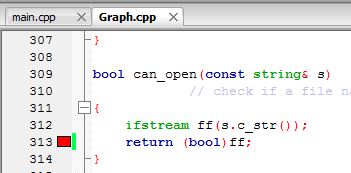
Error 3: cannot convert std::ifstream to 'bool' in return
Solution: Change line 313 in Graph.cpp to return (bool) ff;
Explanation of error: http://stackoverflow.com/questions/31924162/stroustrups-header-error-working-with-fltk
Error 4: redefinition of 'Graph_lib::Menu::Menu(Graph_lib::Point, int, int, Graph_lib::Menu::Kind, const string&)'
Solution: in GUI.h, comment out line 96 and 97 and add a semicolon to the end of line 95

Error 5: reference to 'Window' is ambiguous
Solution: add Graph_lib:: before Window in line 9 of Simple_window.h

Error 6: reference to Polygon is ambiguous
Solution: add Graph_lib:: before Polygon in line 12 of main.cpp
Error 7: undefined reference to 'Fl_JPEG_Image::Fl_JPEG_Image(char const*)'
Solution: Go to Settings → Compiler → Linker settings → Other linker options.
Add the following lines to Other linker options
-lfltk_images
-lfltk_jpeg

Alternatively, instead of applying the -lfltk_images and -lfltk_jpeg to the global compiler, one can add them to individual projects. Right click the project name → Properties → Project settings tab → Project's build options → Linker settings → Other linker options.
Sources:
1. Almost all the solutions to the compilation errors can be found here: https://groups.google.com/forum/#!topic/ppp-public/BtlzdWGuQpQ
1. Almost all the solutions to the compilation errors can be found here: https://groups.google.com/forum/#!topic/ppp-public/BtlzdWGuQpQ
2. https://bewuethr.github.io/installing-fltk-133-under-visual-studio/ This link suggests not to include simple_window.cpp in your project, which gets rid of a lot of errors.
3. http://epweb2.ph.bham.ac.uk/user/hillier/course3cpp/fltkegs/images/fltkimages.html
Basic example of adding images using FLTK, with the suggestion that you should add -lfltk_images and -lfltk_jpeg to your linker options
Basic example of adding images using FLTK, with the suggestion that you should add -lfltk_images and -lfltk_jpeg to your linker options
Monday, April 11, 2016
Microsoft OneNote screen clipping settings
To change where screen clippings settings, go to
File→Options→Send to OneNote→Other Content.
Choose "To Clipboard only" if I don't want it to send to OneNote.
File→Options→Send to OneNote→Other Content.
Choose "To Clipboard only" if I don't want it to send to OneNote.
Monday, February 1, 2016
Mathematica: Clear all variables except one
To clear all variables except x, for example, then input the following
AppendTo[$ContextPath, "special`"];
special`x;
Friday, January 29, 2016
Using FLTK with Code::Blocks for Windows
The following versions were used: fltk v1.3.3, Code::Blocks 16.01, and Windows 7
1. Download fltk-1.3.3-source.tar.gz from http://www.fltk.org/software.php and extract it to C:\
2. Download the installer mingw-get-setup.exe from http://sourceforge.net/projects/mingw/files/. In the MinGW Installation Manager, make sure to install mingw-developer-toolkit, mingw32-base, mingw32-gcc-g++ and msys-base
3. Start msys by launching msys.bat found in C:\MinGW\msys\1.0\
4. Type the following in msys:
cd /c/ (This changes the directory to the C drive)
cd fltk-1.3.3 (This changes the directory to C:\fltk-1.3.3. To check your current working directory, you can type pwd)
./configure
make
make install
5. To successfully create a FLTK project in Code::Blocks, use Solution #1 in http://www.complete-concrete-concise.com/programming/fltk/using-fltk-with-codeblocks
Sources:
https://groups.google.com/forum/#!topic/ppp-public/CuTWEfUcPiw
https://sites.google.com/site/bauyt008/code--blocks-tips--tricks-and-tutorials/c-fltk
http://www.complete-concrete-concise.com/programming/fltk/using-fltk-with-codeblocks
https://users.cs.jmu.edu/bernstdh/Web/common/labs/skills_windows-command-shell/msys/index.php
1. Download fltk-1.3.3-source.tar.gz from http://www.fltk.org/software.php and extract it to C:\
2. Download the installer mingw-get-setup.exe from http://sourceforge.net/projects/mingw/files/. In the MinGW Installation Manager, make sure to install mingw-developer-toolkit, mingw32-base, mingw32-gcc-g++ and msys-base
3. Start msys by launching msys.bat found in C:\MinGW\msys\1.0\
4. Type the following in msys:
cd /c/ (This changes the directory to the C drive)
cd fltk-1.3.3 (This changes the directory to C:\fltk-1.3.3. To check your current working directory, you can type pwd)
./configure
make
make install
5. To successfully create a FLTK project in Code::Blocks, use Solution #1 in http://www.complete-concrete-concise.com/programming/fltk/using-fltk-with-codeblocks
Sources:
https://groups.google.com/forum/#!topic/ppp-public/CuTWEfUcPiw
https://sites.google.com/site/bauyt008/code--blocks-tips--tricks-and-tutorials/c-fltk
http://www.complete-concrete-concise.com/programming/fltk/using-fltk-with-codeblocks
https://users.cs.jmu.edu/bernstdh/Web/common/labs/skills_windows-command-shell/msys/index.php
Sunday, January 24, 2016
Add shortcut for quit kernel in Mathematica
1. Navigate to Program Files/Wolfram Research/.../.../SystemFiles/FrontEnd/TextResources/Windows/
2. Edit the KeyEventTranslations.tr file
3. Example: If you want to add a shortcut for quit kernel, then insert the following into the file:
Item[KeyEvent["q", Modifiers -> {Control}],
FrontEndExecute[
FrontEndToken[
SelectedNotebook[],
"EvaluatorQuit",
Automatic
]
]
],
This will assign Ctrl+q as a shortcut for quit kernel
Friday, January 8, 2016
Getting Code::Blocks to work with regex in Windows
The current stable release of Code::Blocks 13.12 comes with GCC v4.7.1, which does not implement regex. Regex was implemented and released in GCC 4.9.0
1. Download tdm-gcc from http://tdm-gcc.tdragon.net/
2. After installing, open Code::Blocks. Go to Settings -> Compiler -> Toolchain executables
3. Change the Compiler's installation directory to where tdm-gcc was installed. (Default is C:\TDM-GCC-64)
4. Direct the C compiler to gcc.exe, C++ compiler to g++.exe, and linker for dynamic libs to g++.exe. These are all found in the 'bin' folder, i.e. C:\TDM-GCC-64\bin
5. Make sure in the compiler settings, 'Have g++ follow the C++11 ISO C++ language standard' is checked
Sources:
http://stackoverflow.com/questions/8060025/is-this-c11-regex-error-me-or-the-compiler
http://stackoverflow.com/questions/12808650/how-can-i-change-the-compiler-in-codeblocks
1. Download tdm-gcc from http://tdm-gcc.tdragon.net/
2. After installing, open Code::Blocks. Go to Settings -> Compiler -> Toolchain executables
3. Change the Compiler's installation directory to where tdm-gcc was installed. (Default is C:\TDM-GCC-64)
4. Direct the C compiler to gcc.exe, C++ compiler to g++.exe, and linker for dynamic libs to g++.exe. These are all found in the 'bin' folder, i.e. C:\TDM-GCC-64\bin
5. Make sure in the compiler settings, 'Have g++ follow the C++11 ISO C++ language standard' is checked
Sources:
http://stackoverflow.com/questions/8060025/is-this-c11-regex-error-me-or-the-compiler
http://stackoverflow.com/questions/12808650/how-can-i-change-the-compiler-in-codeblocks
Subscribe to:
Posts (Atom)